Home → Get Started
Get Started
Get started with packet analysis.
This short tutorial explains how to do a packet capture. To keep it simple, we use a Mac computer that has a built-in WiFi adapter. This method produces a Wireshark-formatted capture file that you can upload to Context By Signal.
Requirements
- Mac computer. Most Mac computers satisfy the basic requirement for a host with a wireless adapter that can be put into monitor mode. If you're not sure your Mac has a built-in adapter, see the product specifications on Apple.com.
- Airtool 2. A capture application that disconnects the built-in adapter from the wireless network and puts it into monitor mode. When the adapter is in monitor mode, it passes all the frames it receives to Airtool. Normally, the adapter only acceepts packets that are addressed to the host computer.
There are numerous ways to do packet captures for different communication protocols using different hardware and software. The results you get vary based not only on the combination of tools and settings you select, but on factors that extend to the site of the capture and ambient conditions. For detailed information about packet capture with Airtool 2, see the Airtool 2 Help. For information about the limitations of observation using packet capture, see Observation Constraints.
If you're already acquainted with the in's and out's of wireless capture and have a few captures on hand, go ahead and create a job on the Analyze page. To learn more about the hardware and software that is used to collect wireless network information on different generations of WiFi networks, see Observation Constraints.
Make a frame capture
The best way to get a capture file to analyze is to make it yourself. When you do your own captures, you know the hardware and software that was used to make the capture and the environment where the capture was made. This means that the observation summary you get from the analysis will make more sense.
You can also try creating captures in different environments across different versions of WiFi and use CBS to compare the observation records. Soon you'll be able to create batch jobs and aggregate your analysis across capture files to create site fingerprints and understand the wireless context of your site.
Sign in
You'll need to sign in before creating an analysis job.
To sign in
- Go to the Analyze page.
- In Sign in, enter your name and email address. We use this information to notify you when your analysis job is complete.
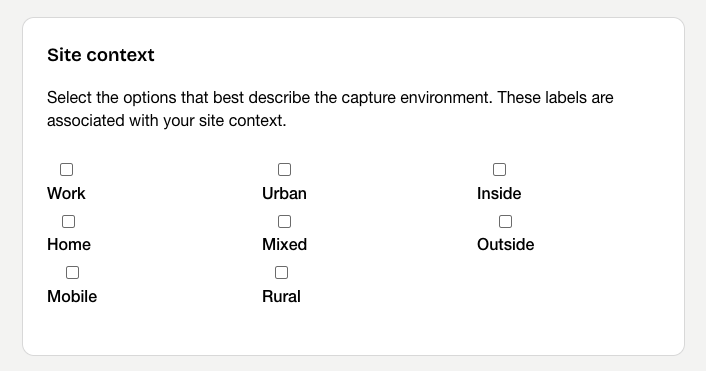
- Enter the city and postal code of the location of your capture.
- Select the options that describe the location.
Step 2. Upload files
To upload files
- Click Choose file.
- Select the Wireshark format file you want to upload. CBS accepts capture files in Wireshark PCAP and PCAPNG formats.
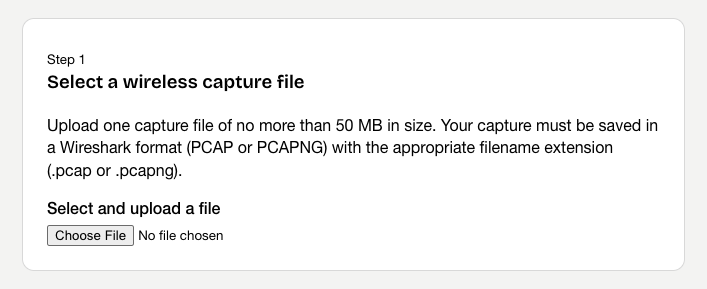
- Click UPLOAD. To remove a selected file, click CLEAR.
Step 3. Select options
When analysis is complete, CBS sends a link to the observation summary to your email address.
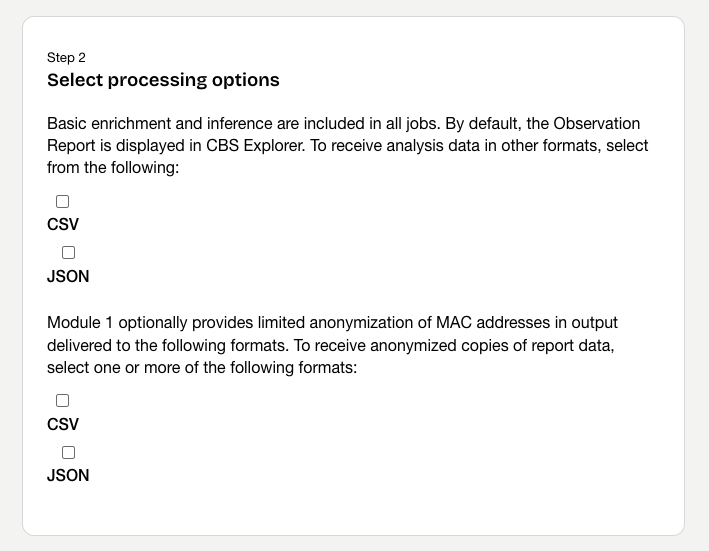
To receive an additional copy of the report in CSV format, select CSV FILE.
To receive an additional copy of the report as a JavaScript Object Notation (JSON) file, select JSON. This format is commonly used for data exchange in software applications.
For an additional report with anonymized MAC addresses, select ANONYMIZE.
Step 4. Review your observation summary
For reference information on the descriptive tables that are contained in the observation summary, see Data Tables.
For a walk-through of an observation summary, see [TBD].